

User Guide
To get the best out of 1X2 Predict, have a read through this User Guide to familiarise yourself with all the features and how to modify the prediction settings. It's important to understand what all the values mean, as this will enable you to get more from the features the app provides. If you have any questions, then please get in touch and we'd be happy to help.
Prediction Credits
How to add more Prediction Credits and where your current balance is displayed.

Your balance is also displayed on the Match Details screen:

Pressing the Prediction Credit balance opens your options on how to add more credits.
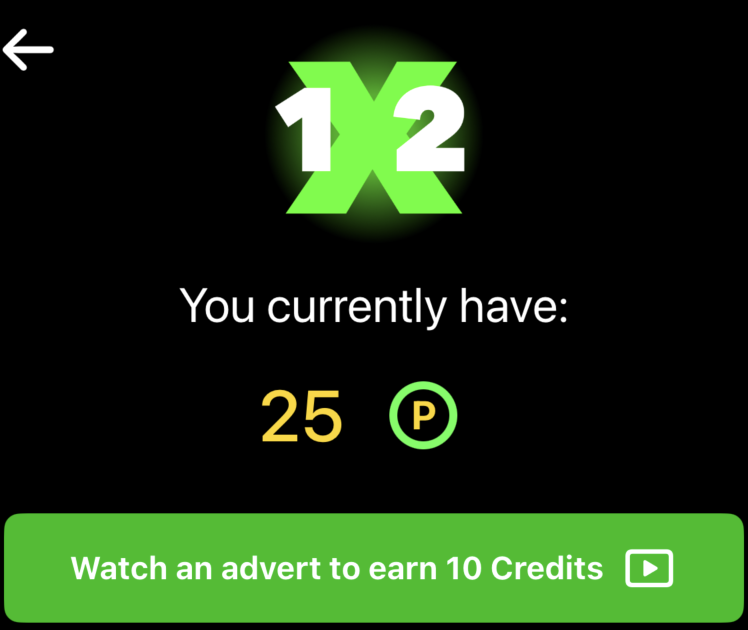
Earn Prediction Credits for FREE by watching a short Rewarded Video Ad. Wait until you see 'Reward granted' appear before closing the Ad and 10 Prediction Credits will be added to your current balance. The display is updated to show your current total.
It's not possible to have a negative Prediction Credit balance. If you try to predict a match when your balance is zero, this page will appear automatically.
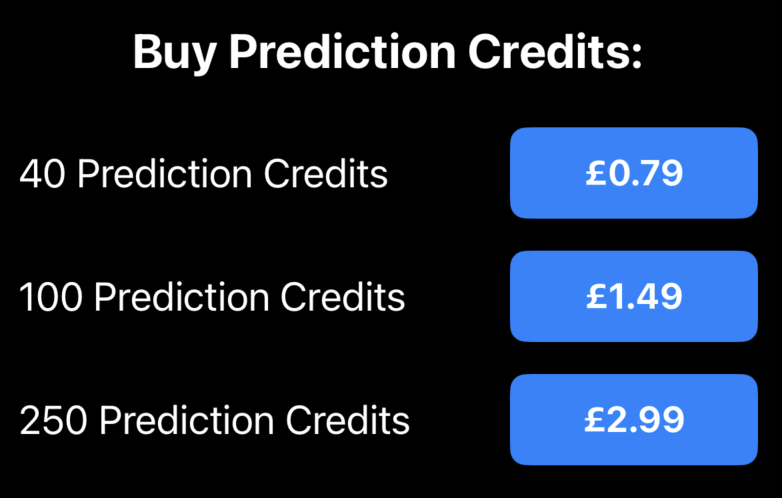
You can purchase 40, 100 or 250 Prediction Credits using the In-App purchase options. This allows you to increase your available Prediction Credits faster than watching videos. The price you see will be in your local currency. Only purchase what you need though, as Prediction Credits are consumable items and not transferable between devices and app installations.
Match Fixture Features
The amount of information displayed on the screen and all the different colours, can appear a little overwhelming at first, but have a read through these features and they should all start to make sense.
The fixtures are displayed in a set order, which currently is not user defined. That order starts with the main FIFA and UEFA Competitions, followed by the top English and European leagues, then the secondary English and European leagues, followed by other International tournaments and finally the rest of the World in alphabetical order and their tournaments. Any new countries added to the system appear at the bottom of the list. It will be possible, in a future update, to turn off the display of countries and competitions you don't want to view.
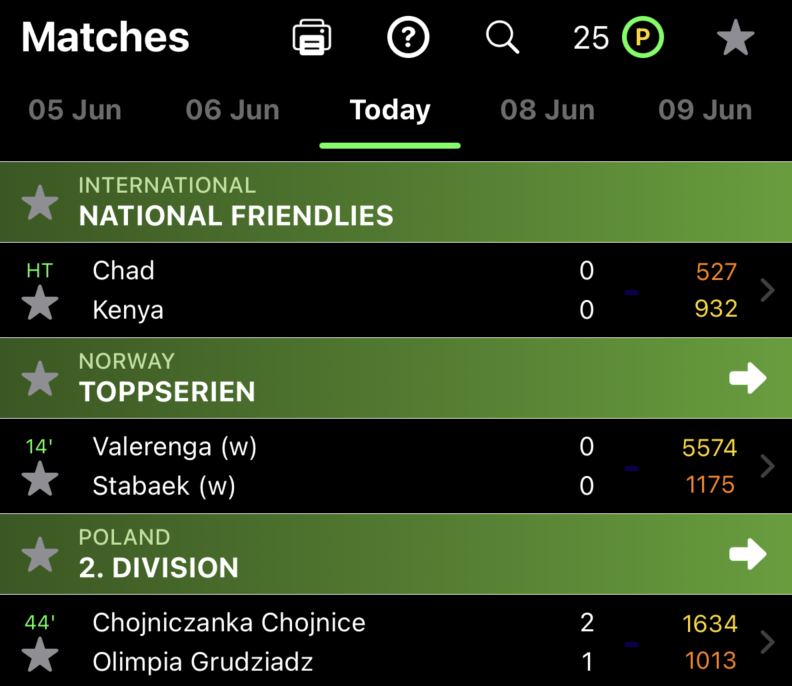


Kick Off Time, current match time and favourite indicator
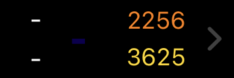
This game has yet to start, but on the right you can see the teams' ratings.
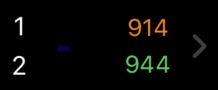
Current scores are displayed once a match has started.

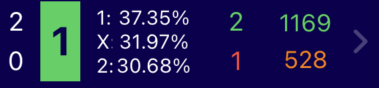
Lets break down this section:
In this example the prediction is a '1' which indicates a Home Win. A '2' means Away Win and an 'X' indicates a draw. Hence, 1X2 Predict. The Green block indicates that the prediction is correct, while a Red block indicates an incorrect prediction. Matches yet to start display an Orange block. The next section indicates the probability percentage of each of the possible outcomes. Following that is the predicted final score, either green/red/orange as with the result prediction. The final values on the right are the teams' continuous rating; before a match starts, a yellow value highlights which team is likely to win. If both teams are yellow, this indicates a possible draw. If a fixture row has a dark blue background, then both predictions (probability and rating) match.

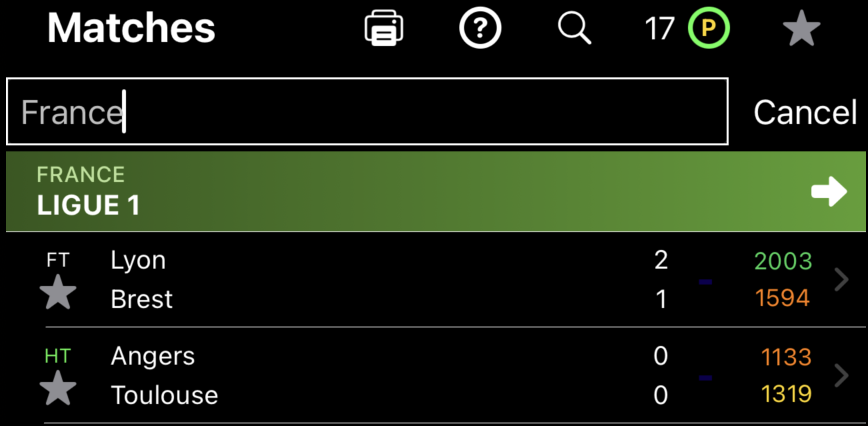
Tapping the magnifying glass icon allows you to search for specific teams, tournaments or countries for the selected date. Simply type in the name of the team/tournament/country and the relevant matches will be displayed. Press the Cancel button afterwards to cancel the search and view all games.
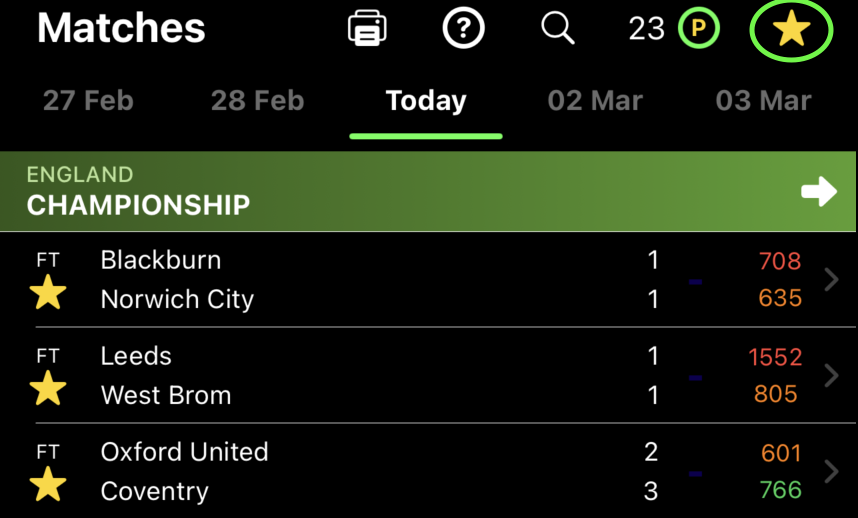
In the top right hand corner is the Favourites button. When selected, it is highlighted, and if you marked any matches as Favourites, they are displayed. Selecting the Favourites button again turns off favourites and all fixtures are displayed. You mark a match as Favourite by selecting the star on the left of the fixture. You can turn this off, for a fixture, without losing the prediction.
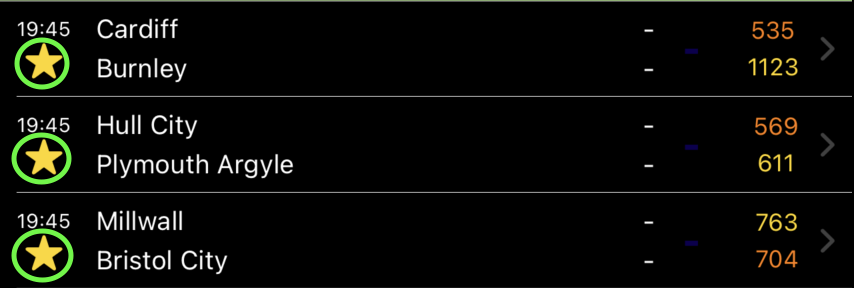
If you have selected matches as Favourites, selecting the Predict button at the bottom of the screen will run the prediction algorithm against these fixtures. The fixtures will be updated and the predictions will be displayed.

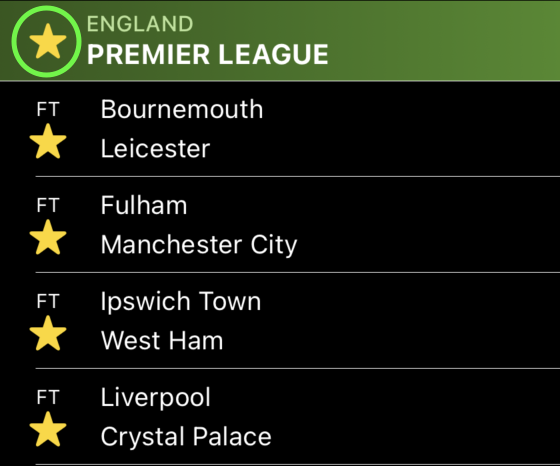
Marking a tournament as favourite will automatically mark of all its matches (for the selected date) as favourites. Similarly, unmarking a tournament as favourite will unmark all of its matches on that date as favourite. If you individually mark all of a tournament's matches as favourite for a date, the tournament will automatically be marked as favourite for that date (and if you then unmark any of those games, the tournament will be unmarked as favourite).

The lower menu also contains two further options, Historic, which allows you to select a past date to view the fixtures on that day, and Live. Live only appears when Today is selected from the Top menu. This will change the display to only show the matches that are currently Live.


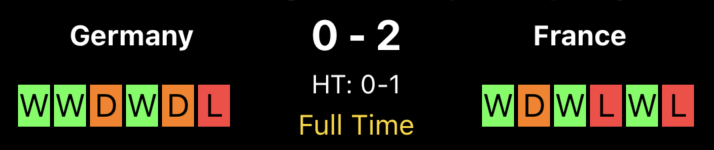
During and after the game, the score, match time and other result information like aggregate score and or penalty shootout score, is displayed.

Initially, with our any prediction being run, the bar displays the teams' current CALM ratings. A yellow coloured rating indicating the team most likely to win. If both ratings are highlighted on yellow, this indicates a likely draw.

Once a prediction has been preformed, the 1X2 percentage values are displayed and the prediction is highlighted in Orange. The predicted scores are displayed between the CALM ratings and the 1X2 percentages. If the background colour of the bar changes to Dark Blue, then the CALM rating prediction matches the calculated prediction. Otherwise, if they differ, the background colour remains unchanged.

During a game, the prediction will flash either Green showing that it is currently a winning prediction or Red indicating a losing prediction. When the game is over, the status is a fixed colour and the CALM rating will change to Red or Green, according.
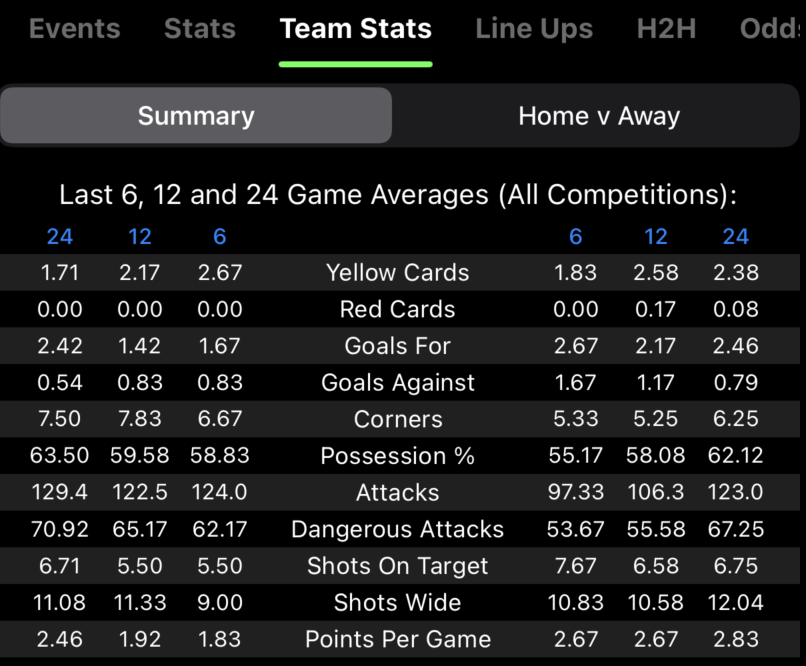
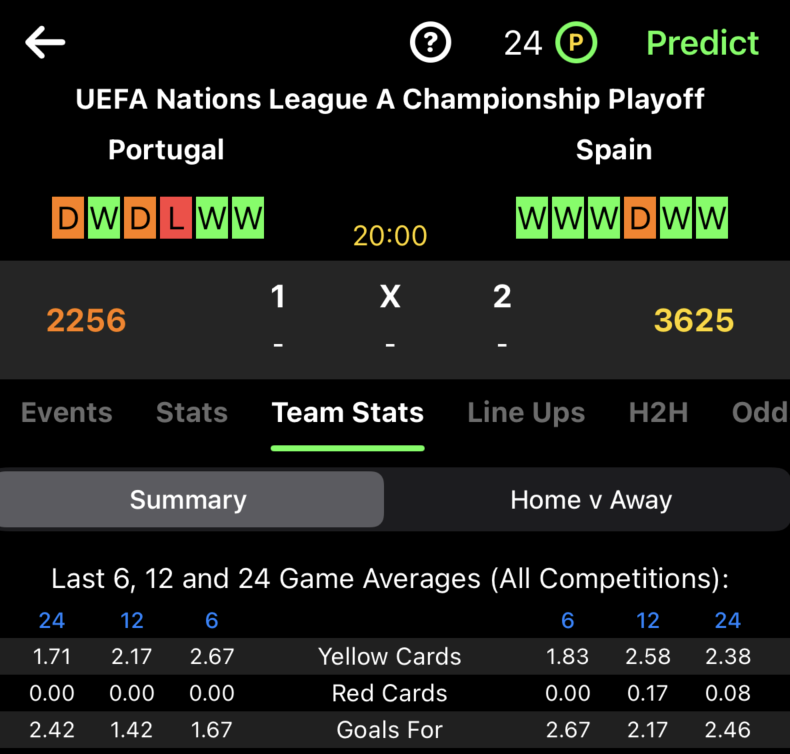
The averages displayed are for the last 6, 12 and 24 games. These can either be for All Competitions or just the Current Competition - this can be set using the option in the Settings tab (see Settings section below). Its possible that the system doesn't contain the information, in which case either a '-' will be displayed, meaning no data is available, or an averages column will be in red and the number of fixtures used to calculate the average will be shown at the top of the column.
When Team Stats are selected, you can also select between Summary and Home v Away options. When the data first loads a summary of the teams' performance averages is displayed. Selecting Home v Away will show stats for only the past home games for the home team, and only the past away games for the away team.
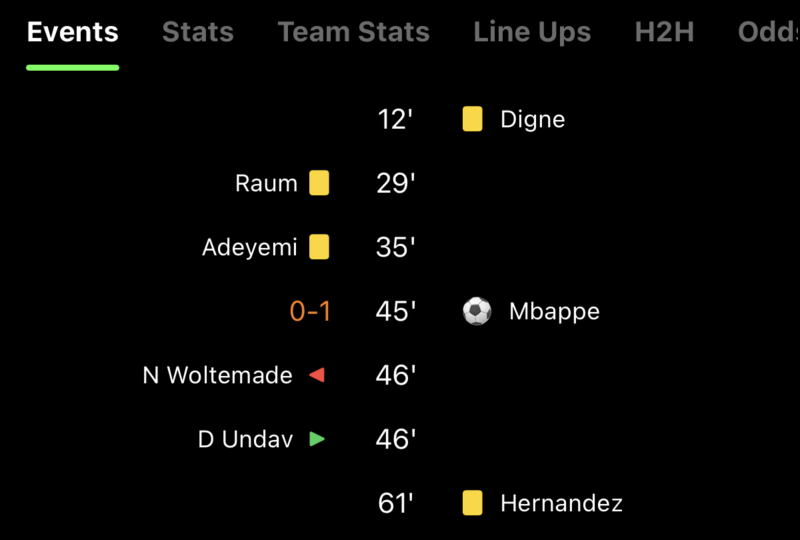
Current the following match events are displayed, goals, penalties (not shoot out penalties currently, substitutes, yellow and red cards.
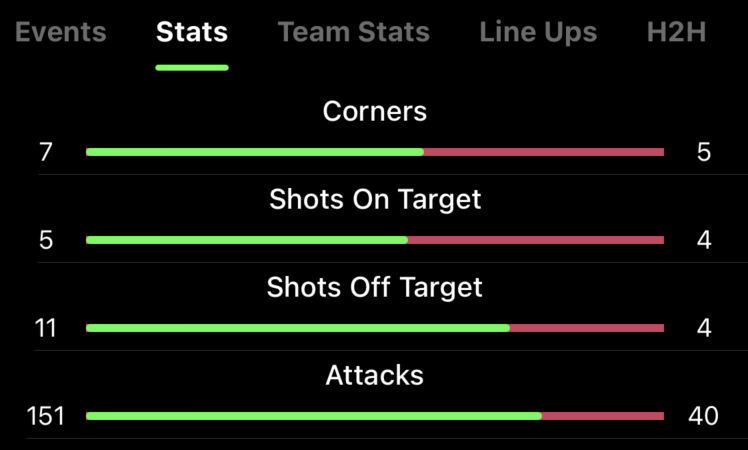
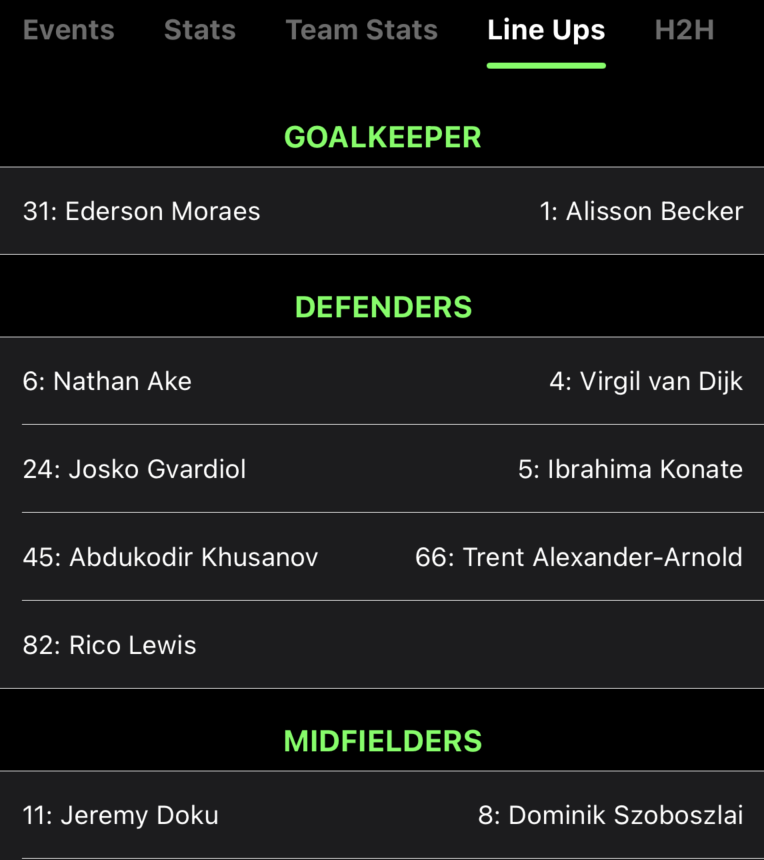
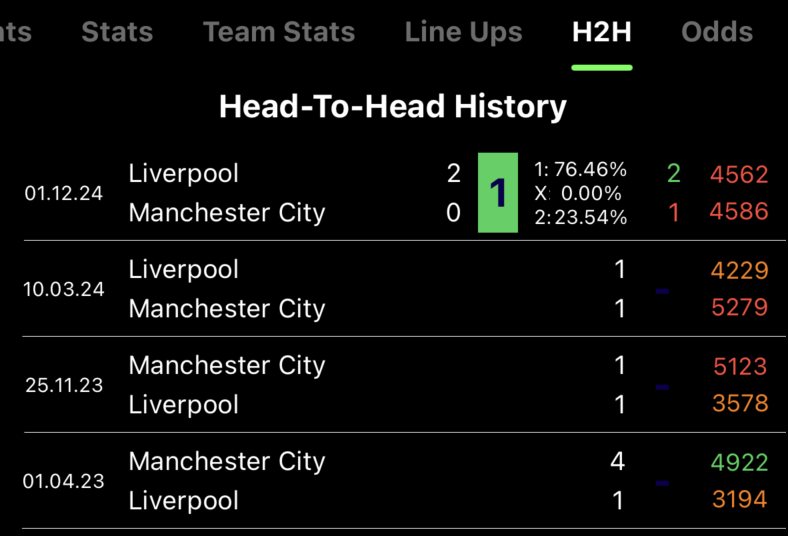
The system displays any fixture were the two teams have played each other. This is limited by the number of seasons held in the local database. Currently the app is shipping with a minimum of the last 5 seasons worth of data (where available for tournaments).
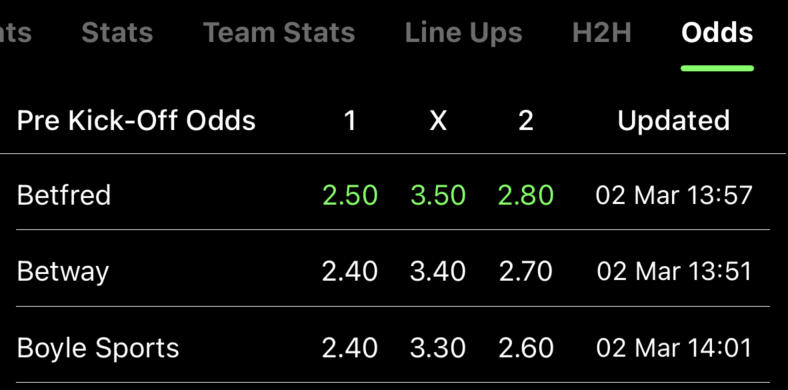
The best odds for each outcome, 1X2, are highlighted in green. The last time the Odds were updated is also displayed.

This uses the active prediction settings to calculation a prediction outcome for this fixture. Note that unlike running predictions against fixtures, which need to be selected as a favourite prior to running predictions, this only runs a prediction for this match, regardless of whether is has been selected as a favourite or not.

Select the arrow to see the current league table.
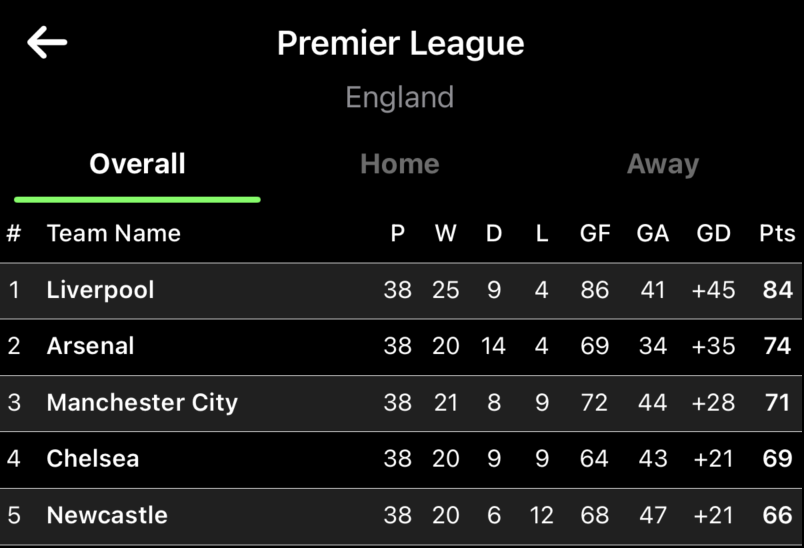
Please Note: Penalty points are NOT taken in to consideration in this table, neither are positions of promotion or relegation, or European competition entry. This is purely to display the relative performance of the teams,
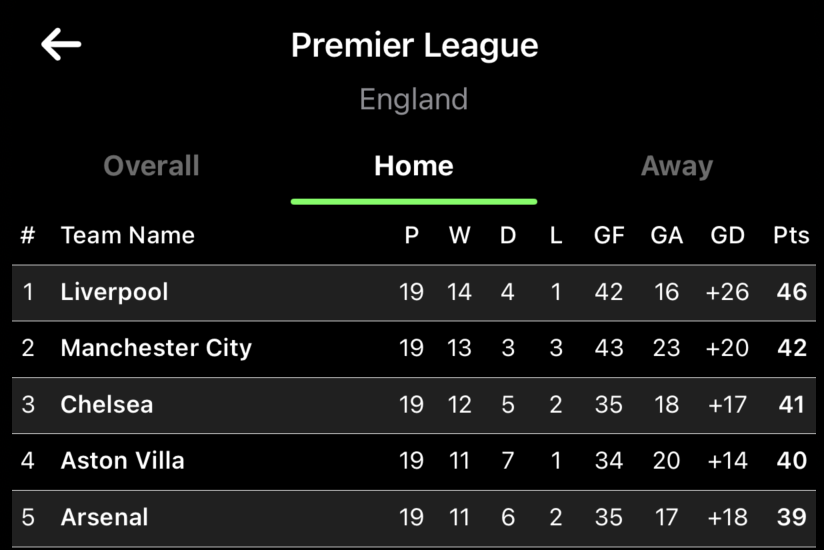
By selecting Home Form you see how the teams line up just based off their home results. Subsequently, Away Form shows how the teams compare with their away performances.
Prediction Settings
This is where you take control of how the predictions are calculated. use your skill and judgement to adjust the settings to suit your thoughts on how a prediction should be calculated. Test your theories against the historic fixtures in the app and hone your settings. Please remember though, past performance is no guarantee of future success, but it can be a great indication. Create as many Prediction setting collections as you like and create variations of your collections. Predictions can only be run against a single setting collection at a time, which you set as your active settings.

Select 1X2 Settings to open the prediction settings.
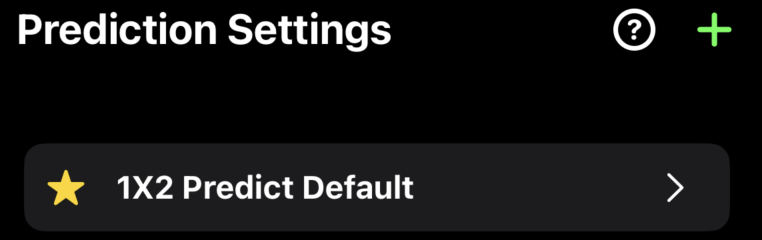
The current prediction collection default name is displayed before the list of prediction collections.
Tap the + button in the top right corner to create a new Prediction Settings collection.
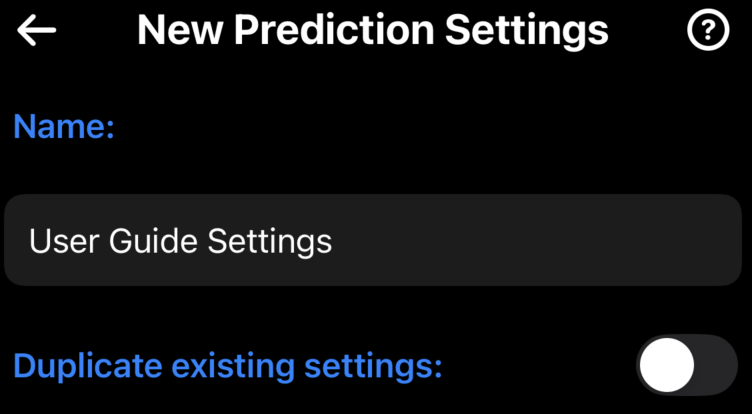
If you want to copy, and adjust, an exiting settings collection, select the switch, which will then display all your current setting collections.
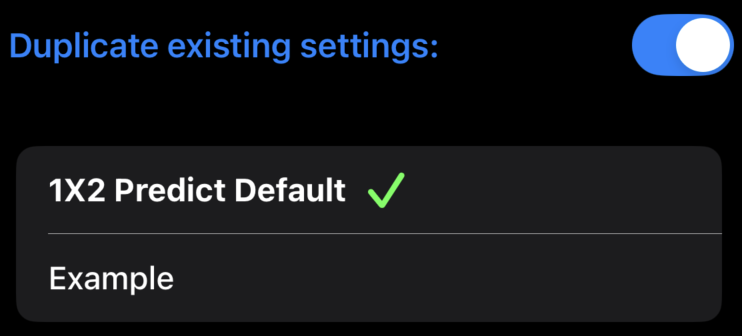
Select an existing collection, then select Create Settings at the bottom of the screen.
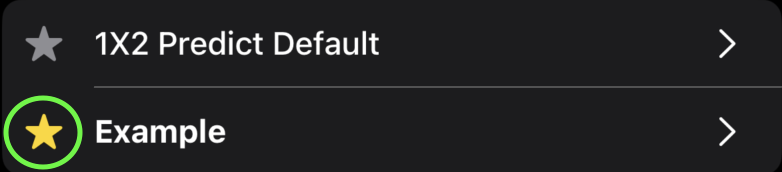
The active collection will have a yellow star next to its name. Tap the star of a different collection to mark it as active.
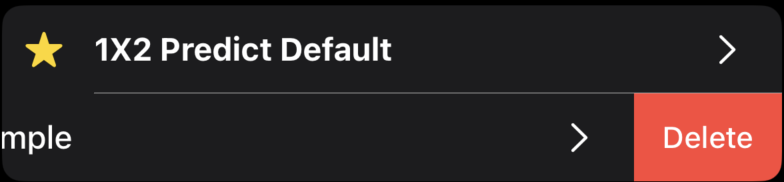
Swipe left on an inactive collection to delete it.
Note: You cannot delete the active collection; you must mark another collection as active first.
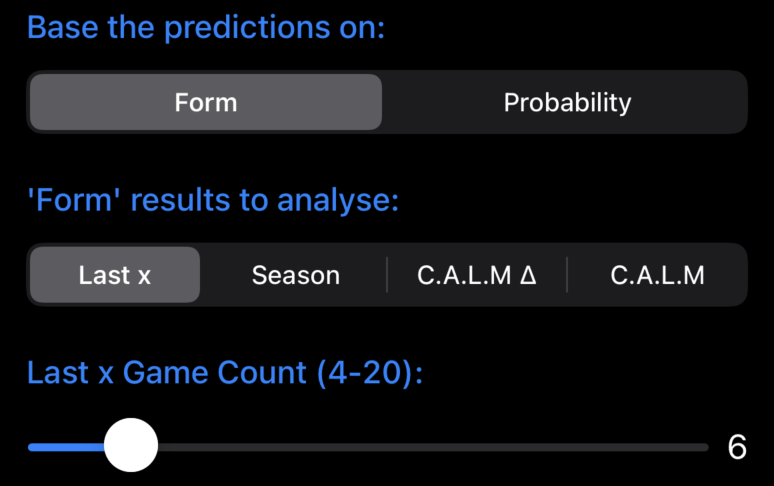
The prediction model uses 1 of 2 methodologies for its calculations, either calculate a current form rating or calculate a probability.
Selecting Form enables which 'form' results do you want to use for the analysis.
Last x: Use the last 'x' number of games to calculate a form rating. Anything less than 4 games wouldn't give a meaningful rating, anything over 20 games and the rating is not 'current' form.
Season: If you want to use a longer value, select Season, as this will use all of the current seasons results.
C.A.L.M Δ (Delta) and C.A.L.M are detailed a little later.

When you're done making changes, tap the back arrow at the top left corner of the page.
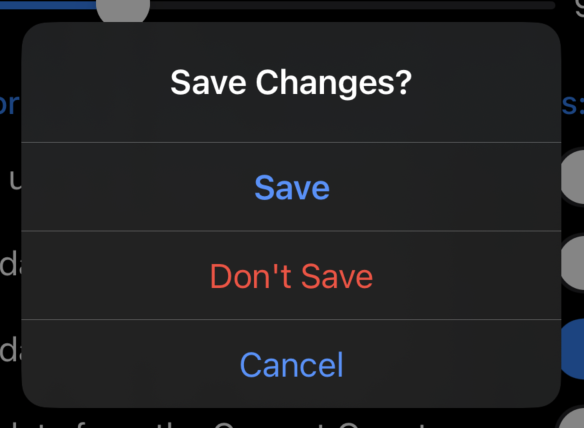
This will prompt you to save your changes. You can either save or discard your changes (or cancel leaving the page).

By default this setting is off, and therefore all of a team's games (Last x games, etc) are used for the calculation of the team's rating. However, when selected, only the Home team's home games and the Away team's away games are used to calculate a team's rating. This is used to compare home versus away performance.
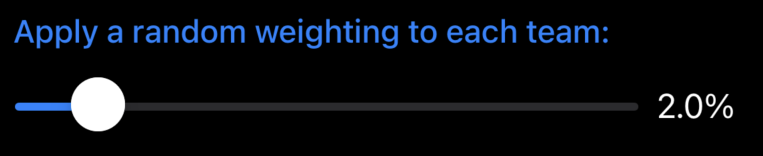
The values that can be set range from 0% to 20%. Why apply a random weighting? This is a personal choice, as with all the settings, but, perhaps a team is having an off day, or injuries mean changes to the regular line up, or even the weather. There are a lot factors that can influence a team's performance and therefore a random weighting adds this element to the calculation.
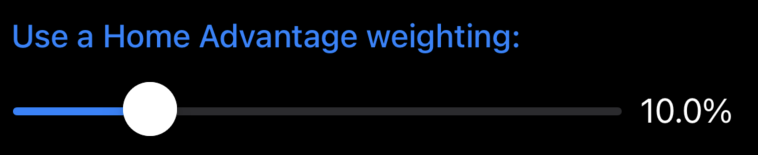
There is no doubt that a home team has an advantage. Use your judgment to set the percentage of the home advantage.
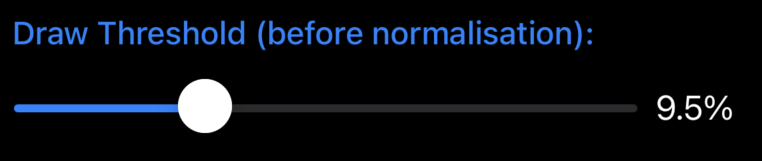
Calculating a draw is one of the most difficult elements of a prediction. The algorithm calculates a 'form' rating for each team, based on the settings you have chosen. When the results are within the 'draw' percentage difference, the predicted outcome is set as a draw. The ratings are always normalised into percentage values to make them easier to read.
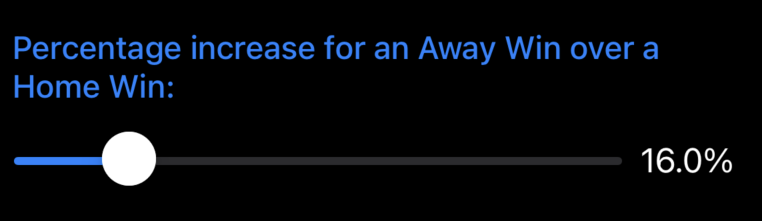
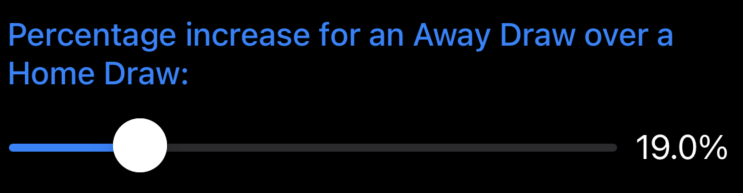
Surely, an away win is worth more than a home win, in terms of performance, given a home team's advantage. Adjust what percentage you feel this is worth to the away team. Same goes for away draws.
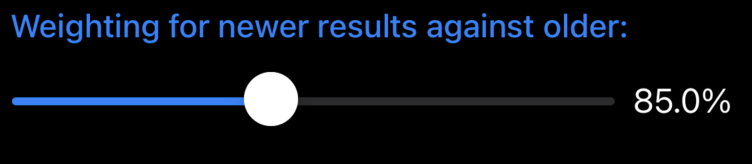
The system is designed to calculate a form rating, specifically a current form rating, therefore how much emphasis should be placed on more recent results against older results.
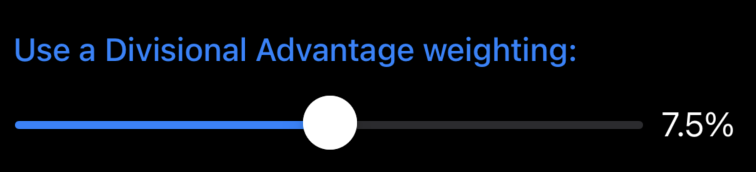
This is specifically for cup competitions where teams normally play in different divisions.
C.A.L.M Δ (Delta) uses the change in ratings from x games ago. This will take into consideration the relative strength of the opposing team, with a win having a greater impact on the resulting rating.
C.A.L.M resets a team's rating to 1000 points and recalculates it's current rating based on the number of games chosen (x).
Both methods also use 'Compare Home Form v Away Form' setting, and the 'Draw Differential' percentage value to determine if the predicted outcome is a draw.
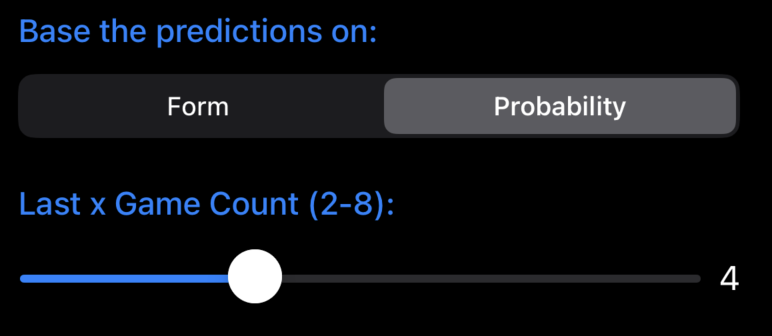
Probability predictions take the outcome of the Last x games and searches the database to calculate the probable outcome of the next game.
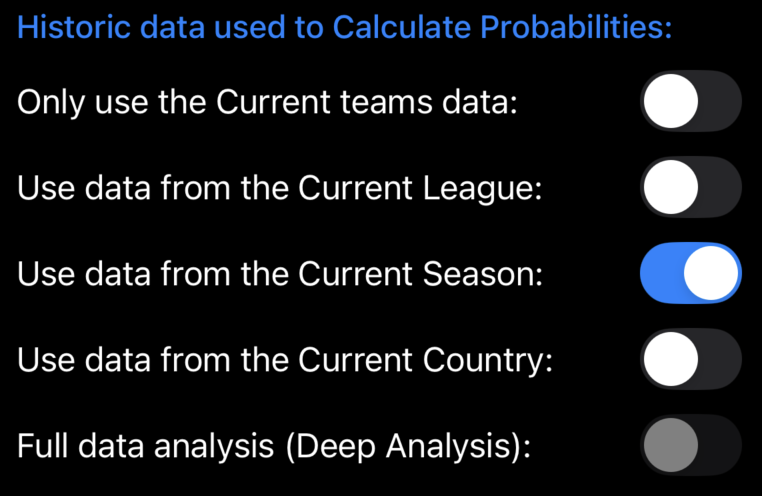
You can set which past results are used in the probability calculation.
Settings
These are the global settings which affect the use of 1X2 Predict.

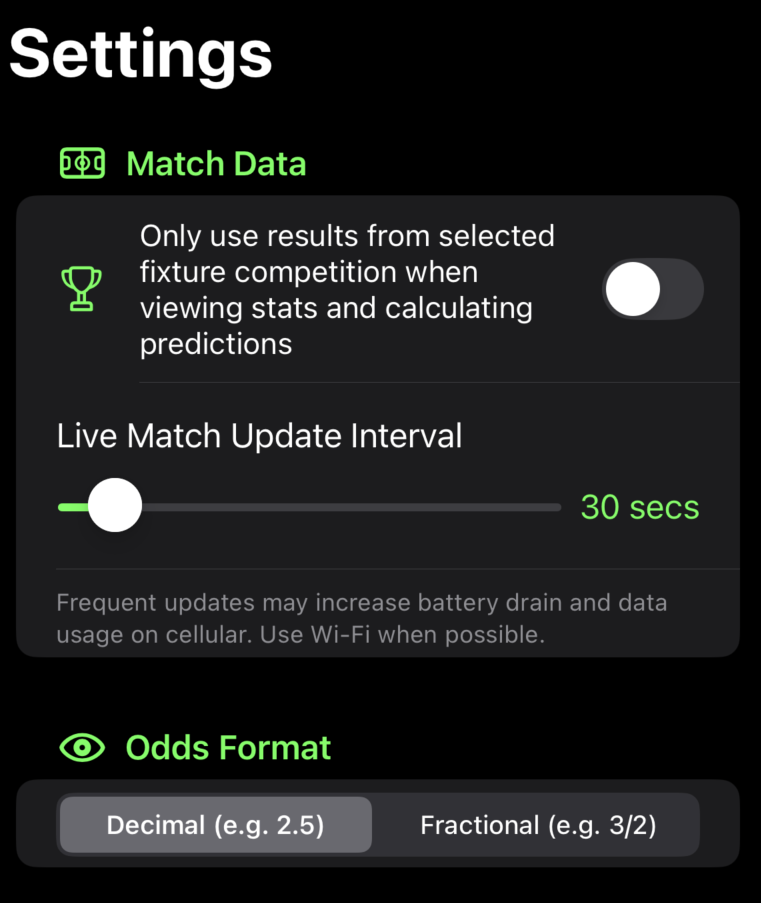

The effects of this setting can be seen on the Match Details page.

When the setting is off, results from All Competitions are displayed and used for predictions.

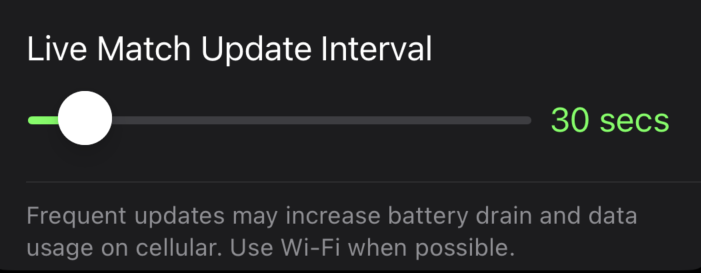
The more frequent the application asks the server for the latest data, the more data you will use from your data plan. Please be aware of your data usage and cellular allowance. Use Wi-Fi whenever possible.
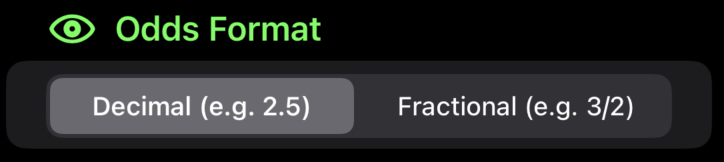
Choose between decimal odds or fractional odds formats. The default option is decimal.
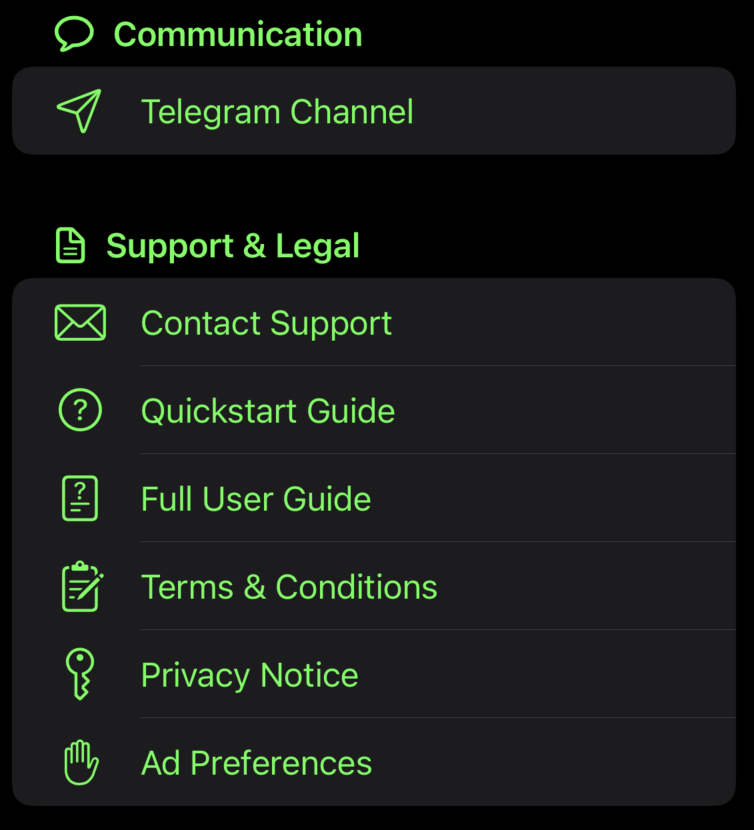
Keep to date with any service issues by subscribing to Service Notifications.
Contact Support, opens an email template to email support. DO NOT delete any of the information already contained in the email. Emails must be in English.
The other links open up this User Guide and link to our Privacy Notice, Terms & Conditions and your Ad Preferences.